Seamless integration of external photo gallery
In this post I will give one way, or my take on how-to integrate an external photo gallery seamless in to your website. Some of the advantage in doing this is you save room/space on your local webhost, and the load on the serve if you have large photo/images since these are not load in another thread on an external server. Off course there are disadvantage as well the gallery provide have to be online for this to work, and you have to maintain gallery content and web content on two different websites. On the other hand you if you choose one of the large providers flickr or picasa, you get some great photo gallery functionality tagging of images and galleries and more.
So i don’t what to build the new Picasa or a like, so i will only provide functionality for showing frontend relevant images and associated information. In near future there will be a post on how-to use this post to integrate into Umbraco.
For this post i have chosen to integrate up against Google’s Picasa so to start with you can go and download the google-gdata API you can get it here
The documentation i used to for making this post and code can be found here
The main idea for making this seamless is it could be easy to switch gallery provider from picasa to whatever your favorite web-photo gallery you use. Off course the difficulties you meet depend on how well an interface the provider gives you, you could end up in some tricky situations.
Okay let’s get started. First of I’ve created the interfaces I’ve so necessary for making a good web gallery. You are more than welcome to give feedback if you think something are missing on one these.
There exist three parts. A gallery which consists of one or more photo albums. Next there off course a photo album which contain some album information and one or more Images. Last off is the image it self. So here are the three interfaces.
public interface IGallery
{
String Name { get; }
String Description { get; }
int NumberOfAlbums { get; }
IEnumerable Albums{get;}
IGalleryAlbum GetAlbumFromId(string id);
}
public interface IGalleryAlbum
{
String Id { get; }
String Name{ get; }
String Description { get; }
String Category { get; }
IGalleryImage AlbumCoverImage { get; }
uint NumberOfImages { get; }
IEnumerable Images { get; }
}
public interface IGalleryImage
{
String Name { get; }
String Url { get; }
String Description { get; }
String ThumbnailUrl { get; }
Dictionary ExifData { get; }
}
Again you are more than welcome to give feedback if you think something is missing, keep in mind this is what I think is one a good and simple image gallery should be able to provide of information.
So now we have the interfaces in place lets go ahead an implement them using the Picasa API.
This is a pretty simple task if keep a window open with the documentation here is another link to the documentation
All I’ve used is the simple example provide at the documentation page.
First of the gallery implementation this is simple.
namespace PicasaGalleryModel
{
public class PicasaGallery : IGallery
{
private PicasaService _service;
private PicasaFeed _feed;

private const string PICASA_SERVICE_NAME = "PicasaIGalleryModel";

public PicasaGallery(string username)
{
Username = username;
}

public string Name
{
get
{
return Feed.Title.Text;
}
}

public string Description
{
get { return ""; }
}

public int NumberOfAlbums
{
get { return Albums.Count(); }
}

public IEnumerable Albums
{
get
{
return InitializeGalleryAlbumFromPicasaFeed();
}
}

public IGalleryAlbum GetAlbumFromId(string id)
{
return Albums.Where(g => g.Id == id).First();
}

private PicasaFeed Feed
{
get
{
if (_feed == null)
_feed = RetrieveUserAlbumsFromPicasa();
return _feed;
}
}

private PicasaFeed RetrieveUserAlbumsFromPicasa()
{
AlbumQuery query = new AlbumQuery(PicasaQuery.CreatePicasaUri(Username));
PicasaFeed feed = Service.Query(query);
return feed;
}

private IEnumerable InitializeGalleryAlbumFromPicasaFeed()
{
foreach (PicasaEntry entry in Feed.Entries)
{
IGalleryAlbum album = new PicasaAlbum(entry,Service,Username);
yield return album;
}

}

private PicasaService Service
{
get
{
if(_service == null)
_service = new PicasaService(PICASA_SERVICE_NAME);
return _service;
}
}

private void Logon()
{
}

protected string Password
{
get;
set;
}

protected string Username
{
get; set ;
}
}
}
DO note that the username is the logon name you use to logon to picasa.
The implementation have some unused and unfinished function, when I first the idea to this post it started as huge project where I wanted security from picasa as well to be covered, in this implementation.
Wow this class uses the IGalleryAlbum so let’s move on to the implantation of this.
namespace PicasaGalleryModel
{
public class PicasaAlbum : IGalleryAlbum
{
private PicasaEntry _albumFeed;
private PicasaFeed _imageFeed;
private AlbumAccessor _ac;

public PicasaAlbum(PicasaEntry feed,PicasaService service,string username)
{
AlbumFeed = feed;
Service = service;
Username = username;
}

public string Name
{
get { return AlbumAccessor.AlbumTitle; }
}

public string Description
{
get { return AlbumAccessor.AlbumSummary; }
}

public string Category
{
get { return "CAT-SET_STATIC"; }
}

public IGalleryImage AlbumCoverImage
{
get
{
PhotoQuery query = PhotoQueryFromUri(AlbumFeed.Id.AbsoluteUri);
return BuildIGalleryImageFromPicasa(Service.Query(query)).First();
}
}

private AlbumAccessor AlbumAccessor
{
get
{
if (_ac == null)
_ac = new AlbumAccessor(AlbumFeed);
return _ac;
}
}

public uint NumberOfImages
{
get
{

return AlbumAccessor.NumPhotos;
}
}

public IEnumerable Images
{
get
{
return BuildIGalleryImageFromPicasa(ImageFeed);
}
}

private IEnumerable BuildIGalleryImageFromPicasa(PicasaFeed feed)
{
foreach (PicasaEntry entry in feed.Entries)
{
IGalleryImage image = new PicasaImage(entry);
yield return image;
}
}

public PicasaEntry AlbumFeed
{
get { return _albumFeed; }
set { _albumFeed = value; }
}

public PicasaFeed ImageFeed
{
get
{
if(_imageFeed == null)
{

_imageFeed = Service.Query(PhotoQueryFromUri(PicasaImageUri()));
}
return _imageFeed;
}
}

private string PicasaImageUri()
{
return PicasaQuery.CreatePicasaUri(Username, Id);;
}

private PhotoQuery PhotoQueryFromUri(string uri)
{
return new PhotoQuery(uri);
}

private PicasaService Service
{
get; set;
}

public String Id
{
get
{
return AlbumAccessor.Id;
}
}

private string Username
{
get;
set;
}
}
}
And now to the final part the Image implementation
namespace PicasaGalleryModel
{
public class PicasaImage : IGalleryImage
{

private PhotoAccessor _photoAccessor;

private Dictionary _exifData;

public PicasaImage(PicasaEntry entry)
{
Entry = entry;
}

private PicasaEntry Entry
{
get;
set;
}

public string Name
{
get
{
return PhotoAccessor.PhotoTitle;
}
}

public string Url
{
get
{
return Entry.Media.Content.Attributes["url"].ToString();
}
}

public string Description
{
get { return PhotoAccessor.PhotoSummary; }
}

public string ThumbnailUrl
{
get
{
return Entry.Media.Thumbnails[0].Attributes["url"].ToString();
}
}

public Dictionary ExifData
{
get
{
if (_exifData == null)
InitializeExifDataToDictionary();
return _exifData;
}
}

private void InitializeExifDataToDictionary()
{
_exifData = new Dictionary();
_exifData.Add("Camera model", Entry.Exif.Model.Value);
_exifData.Add("ISO", Entry.Exif.ISO.Value);
_exifData.Add("Focal Length", Entry.Exif.FocalLength.Value);
//_exifData.Add("Exposure", Entry.Exif.Exposure.Value);
_exifData.Add("F Stop", Entry.Exif.FStop.Value);
_exifData.Add("Flash", Entry.Exif.Flash.Value);
}

public PhotoAccessor PhotoAccessor
{
get
{
if(_photoAccessor == null)
_photoAccessor = new PhotoAccessor(Entry);
return _photoAccessor;
}
}

}
}
Now with the model in place we can start to render out the IGallery* stuff.
This is made so it should be easy to integrate into Umbraco hence the MasterPage file.
The frontend stuff consist of the main gallery which loads in two different controls depending on you are viewing a list of albums or a list images in an album. The styling is left for you do, since this is dependent on your website design. If you like a can In a later post do this.
The main gallery
The .ascx page
<%@ Page Language="C#" MasterPageFile="~/Gallery.master" AutoEventWireup="true" CodeBehind="Default.aspx.cs" Inherits="Presentation._Default" %>
 <%@ Import Namespace="Interfaces" %>

<asp:Content ID="head" ContentPlaceHolderID="head" Runat="Server">
 <script type="text/javascript" src="js/jquery.js"></script>
 <script type="text/javascript" src="js/jquery.lightbox-0.5.min.js"></script>
 <script type="text/javascript" src="js/InitLightbox.js"></script>
 <link rel="stylesheet" type="text/css" href="/CSS/jquery.lightbox-0.5.css" media="screen" />
 </asp:Content>

 <asp:Content ID="GalleryContent" ContentPlaceHolderID="GalleryContent" Runat="Server">

<div>
My Gallery Test
<asp:PlaceHolder ID="galleryContent" runat="server" />

</div>
 </asp:Content>
and the codepage
public partial class _Default : System.Web.UI.Page
{
private IGallery _gallery;
public const string ALBUMID = "aid";

protected void Page_Load(object sender, EventArgs e)
{

SetGalleryContent();
}

private void SetGalleryContent()
{
Control view;
if (String.IsNullOrEmpty(AlbumId))
view = LoadGalleryView;
else
view = LoadAlbumView;
galleryContent.Controls.Add(view);
}

private IEnumerable GalleryAlbums
{
get
{
return Gallery.Albums;
}
}

private Control LoadGalleryView
{
get
{
Control viewControl = LoadControl("~/GalleryView.ascx");
GalleryView gallery = (GalleryView)viewControl;
gallery.AlbumQueryString = ALBUMID;
gallery.GalleryAlbums = GalleryAlbums;
return viewControl;
}
}

private Control LoadAlbumView
{
get
{
Control viewControl = LoadControl("~/AlbumView.ascx");
AlbumView gallery = (AlbumView)viewControl;
gallery.Images = CurrentAlbum.Images ;
return viewControl;
}
}

private IGalleryAlbum CurrentAlbum
{
get
{
return Gallery.GetAlbumFromId(AlbumId);
}
}
private string AlbumId
{
get
{
return Request.QueryString[ALBUMID];
}
}

private IGallery Gallery
{
get
{
if(_gallery == null)
_gallery = new PicasaGallery("USERNAME_GOES_HERE");
return _gallery;
}
}
}
The List view of albums Ascx page
<%@ Control Language="C#" AutoEventWireup="true" CodeBehind="GalleryView.ascx.cs" Inherits="Presentation.GalleryView" %>
 <%@ Import Namespace="Interfaces"%>

<asp:Repeater runat="server" ID="AlbumeRepeater" DataSource="<%# GalleryAlbums %>">
 <ItemTemplate>
 <div>
 <a href="<%# AlbumLink(((IGalleryAlbum)Container.DataItem).Id) %>" >
 <img src="<%# ((IGalleryAlbum)Container.DataItem).AlbumCoverImage.ThumbnailUrl %>" alt="" />
 </a>
 </div>
 <div>
 <a href="<%# AlbumLink(((IGalleryAlbum)Container.DataItem).Id) %>" >
 <%# ((IGalleryAlbum)Container.DataItem).Name %>
 </a>
 </div>
 <div>
 <%# ((IGalleryAlbum)Container.DataItem).NumberOfImages %>
 </div>
 <div>
 <%# ((IGalleryAlbum)Container.DataItem).Description%>
 </div>

 </ItemTemplate>
 </asp:Repeater>
Codepage
public partial class GalleryView : System.Web.UI.UserControl
{
protected void Page_Load(object sender, EventArgs e)
{
AlbumeRepeater.DataBind();
}

public string AlbumLink(string albumId)
{
string url = String.Format("{0}{1}={2}", Request.RawUrl, AlbumQueryString, albumId);
return url;
}

public string AlbumQueryString
{
get; set;
}

public IEnumerable GalleryAlbums
{
get;
set;
}

}
And finally the list view of images in an album
Ascx page
<%@ Control Language="C#" AutoEventWireup="true" CodeBehind="AlbumView.ascx.cs" Inherits="Presentation.AlbumView" %>
 <%@ Import Namespace="Interfaces"%>
 <asp:Repeater ID="ImageRepeater" runat="server" DataSource="<%#Images %>">
 <HeaderTemplate>
 <ul id="Gallery">
 </HeaderTemplate>
 <ItemTemplate>
 <li>
 <a href="<%# ((IGalleryImage)Container.DataItem).Url %>" class="lightbox" title="<%# ExifData((IGalleryImage)Container.DataItem)%>"><img src="<%# ((IGalleryImage)Container.DataItem).ThumbnailUrl %>" /></a>

 </li>
 </ItemTemplate>
 <FooterTemplate>
 </ul>
 </FooterTemplate>
 </asp:Repeater>
Codepage
public partial class AlbumView : System.Web.UI.UserControl
{
protected void Page_Load(object sender, EventArgs e)
{
ImageRepeater.DataBind();
}

public string ExifData(IGalleryImage image)
{
string exifData = "";
foreach(string key in image.ExifData.Keys)
{
exifData += string.Format("{0} : {1}<br>
", key, image.ExifData[key]);
}
return exifData;
}

public IEnumerable Images
{
get;
set;
}
}
The final part is using the jquery lightbox again you could switch this to you own favorite gallery viewing service the lightbox for jquery can be found here. I’ve extend this a bit so you can provide a max image height and max image width, both are found in the solution for this project.
And a service for my loyal readers, you can now download the entire solution which contains all the above models implementations, and all the other good stuff I’ve covered in this post. And now you can head over and see when this is integrated into umbraco, i’ve done this for my site here is a like to my gallery
Simple GoogleMap
I recently had to make a page showing different locations each with it own little googlemap.
To make it easy to use i used jQuery to hook in a create the googlemap from the html. The map generatet is a simple map with one marker and centered on this marker. with an width and height set to 400px.

So I used span tag html to set the settings need for generating each googlemap.
I then use jQuery to look for a container that have one or multple of theese maps inside and add a map to the specific “mapItem”
The html needed for one item is as shown below:
<div>
<span>
<span>Na;</span>
<span>Na</span>
<span>Map0</span>
<span>Pentia store kongensgade 66 copenhagen denmark</span>
</span>
<div id="Map0" style="width:400px; height:400px;">
</div>
</div>
To get it all to wok you of course need a googlemapApi key get from here
Here is the jquery file i used to hook in on document ready function note if the longtitude and/or latitude isn’t set i’l try to and a marker to map from the address if that fails to you’ll get an invalide map.
jQuery(document).ready(function()
{
buildMapsFromHTML();
}
)

/*****************

*  MAP SEETINGS  *

*****************/
var map;
var geocoder;
var zoomLevel = 14;
var mapIndex = 0;


/*****************

*  MAP FUNCTIONS *

*****************/
function buildMapsFromHTML(){
var googleMaps = jQuery(".Map");
var i;
for (i = 0; i < googleMaps.length; i++)
{
mapIndex = i;
addMap(googleMaps[i],mapIndex);
}
}

function addMap(mapSettings) {
// GET SETTINGS FROM HTML
var setting = jQuery(mapSettings).children(".MapSettings");
var mapId = jQuery(setting).children(".mapId").html();
var longtitude = jQuery(setting).children(".longtitude").html();
var latitude = jQuery(setting).children(".latitude").html();
var address = jQuery(setting).children(".address").html();


if (latitude != "Na" || longtitude != "Na") {
initializeMap(mapId);
addMarkerToMap(longtitude, latitude);
centerMap(longtitude, latitude);
}
else{
generateMapFromAddress(address,mapId);
}
}

function initializeMap(mapId) {
map = new GMap2(document.getElementById(mapId));
}

function generateMapFromAddress(address,mapId) {
var coordinate = cordinatesFromGoogle(address,mapId)
}

function cordinatesFromGoogle(address,mapId) {

geocoder = new GClientGeocoder();

geocoder.getLatLng(address, function(point) {
if(point) {
var longtitude = point.lng().toFixed(5)
var latitude = point.lat().toFixed(5)
initializeMap(mapId);
addMarkerToMap(longtitude, latitude);
centerMap(longtitude, latitude);
}
})
}

function addMarkerToMap(longtitude, latitude) {
var point = new GLatLng(latitude, longtitude);
var marker = new GMarker(point);
map.addOverlay(marker);
}

function centerMap(longtitude, latitude) {
var point = new GLatLng(latitude, longtitude);
map.setCenter(point, zoomLevel);
}
So an example html to bind it all together could look like this:
<html>
<head>
<script src="http://code.jquery.com/jquery-1.4.2.min.js" type="text/javascript"></script>
<script src="http://maps.google.com/maps?file=api&v=2&sensor=true_or_false&key=localhost type="text/javascript"></script>
<script type="text/javascript" src="googlMaps.js"></script>
</head>

<body>
<div>
<span>
<span>Na</span>
<span>Na</span>
<span>Map0</span>
<span>store kongensgade 66 copenhagen denmark</span>
</span>
<div id="Map0" style="width:400px; height:400px;">
</div>
</div>

<div>
<span>
<span>Na</span>
<span>Na</span>
<span>Map1</span>
<span>store kongensgade 66 copenhagen denmark</span>
</span>
<div id="Map1" style="width:400px; height:400px;">
</div>
</div>

</body>
</html>
If no longtitude or/and latitude is set i gets the marker from the address.
and Na should be used to say that you dont have those values. Offcourse it could be extended to specify which kind of map and so on. This could be set in the settings as well togehter with zoomlevel and so on.
remember to set the googlemap key to your domain
Adding captcha “Recaptcha Umbraco Blog”
So after i my self got spammed by a lot of robots on my blog i browsed the internet to find an easy way to add captcha for the comment part of my blog.
So i found the easiest way to do was using recaptcha, which can be found here recaptcha.net. So before we start head over there and create an account.
Step 1:
Create recaptcha.net account recaptcha.net
Step 2:
Download the .Net package containing the recaptcha.dll
Step 3:
Download from you site frmBlogComment.ascx placed in siteroot/usercontrols
Step4:
Edit frmBlogComment.ascx
add the following lines
These lines should be right after the “control tag” “<%@ Control …… %>”
Futher down you can now add the recaptcha usercontrol
<recaptcha:RecaptchaControl
 ID="recaptcha"
 runat="server"
 PublicKey=...
 PrivateKey=....
 />
ofcourse with your privatekey and publickey..
Step 5:
Upload recaptcha.dll to your webroot/bin
Upload the newly edited frmBlogComment.ascx to you webroot/usercontrols/
And you should be all done and no more bots should spam your blog I hope.
This post is for them that dont want to recompile umbraco, it would be a much better solution to add an reference to the recaptcha.dll
Encrypting and signing Mail in .Net part 5/5 (Encrypting the content and sending the mail)
Final part in the serie c# encrypting mail.
So now we got the content build and signed. Now what is left to do i encrypting the content.
In this post we have a look at how the structure of the content should just before it is encrypted, and how to encrypt the content.
Link to part 1, part 2, part 3, part 4
To encrypt the content I will use the GetCert method that we did in part 4 of this series.
As with the signing part we will split this encryption into two bits. adding boundary to the content and encrypting part.
First the encrypting part:
public byte[] DoEncrypt(string message, X509Certificate2 encryptionCertificates)
{
byte[] messageBytes = Encoding.ASCII.GetBytes(message);

EnvelopedCms envelopedCms = new EnvelopedCms(new ContentInfo(messageBytes));

CmsRecipient recipients = new CmsRecipient(SubjectIdentifierType.IssuerAndSerialNumber, encryptionCertificates);

envelopedCms.Encrypt(recipients);

return envelopedCms.Encode();
}
With this function done we can now ready the content for encryptions. We add a simple boundary to the content and specifies what type the innner boundary is of. Important that if you skipped the signing part that you change this accordingly to match the type of you content.
Here is the code for encrypting and sending the mail:
public void encrypt(string content)
{
MailMessage message = new System.Net.Mail.MailMessage();
string encryptedContentType = "application/x-pkcs7-mime; smime-type=enveloped-data; name=\"smime.p7m\"";
string signatureBoundry2 = "--PTBoundry=3";
StringBuilder fullUnencryptedMessageBuilder = new StringBuilder();
fullUnencryptedMessageBuilder.Append("Content-Type: ");
fullUnencryptedMessageBuilder.Append("multipart/signed; ");
fullUnencryptedMessageBuilder.Append(" boundary=\"");
fullUnencryptedMessageBuilder.Append(signatureBoundry2);
fullUnencryptedMessageBuilder.Append("\"; protocol=\"application/x-pkcs7-signature\"; micalg=SHA1; ");

fullUnencryptedMessageBuilder.Append("\r\n");
fullUnencryptedMessageBuilder.Append("Content-Transfer-Encoding: ");
fullUnencryptedMessageBuilder.Append(TransferEncoding.SevenBit);
fullUnencryptedMessageBuilder.Append("\r\n\r\n");
fullUnencryptedMessageBuilder.Append(content);

string fullUnencryptedMessage = fullUnencryptedMessageBuilder.ToString();

byte[] encryptedBytes = DoEncrypt(fullUnencryptedMessage, GetCert());

MemoryStream stream = new MemoryStream(encryptedBytes);
AlternateView view = new AlternateView(stream, "application/pkcs7-mime; smime-type=signed-data;name=smime.p7m");
message.AlternateViews.Add(view);
message.To.Add("youremail@yourdomain.com");

message.From = new MailAddress("someone@yourdomain.com");
message.Subject = "TEST";
SmtpClient smtp = new SmtpClient("smtp.yourdomain.com");
smtp.Send(message);

}
This function also sends out the mail you might wanna spilt this up to seperate methods. And do remember to give valide email adresses and a sane smtphost.
Now lets have a look at the result:

Yes there is a warning with the signature but rember in part 1 where did a selfsigned certificate this is the problem, but you cal always just accept the signature as trusted in your outlook.
Okay so how doesn’t the content that we build look like just before it is encrypted ?
If hightligthe the different steps we done in this series.
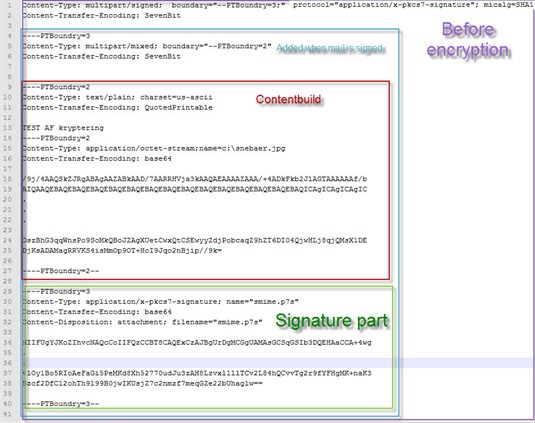
Also note the diffenrent boundary references from one part to underlaying content part.

Remember to change email smtp host and serial for certificat
Note you should implement all the explained methods in nice class’s that wraps all this functionality into one simple class. The code file you can download is constructed as a simple file so i would be easier to explain howto encrypt and sign emails. It is not intended to be used for production purposes.
Finished you now know ho to encrypt and sign mails with c#.
c# encrypting and signing mail
Encrypting and signing Mail in .Net part 4/5 (Signing the content)
Okay so now we are done and have build the content of the mail. Now we need to sign it. If you dont want to sign the mail skip this part and jum straight to encrypting “which will be the next post”. I’ve found quite a few post on tje net on howto sign at encrypt mails but none of them worked for me. I’ve had to look at package and mail content to analyze how to to build the right content and signing part as well. For the signing part we off course need a certificate with access to the private key.
Link to part 1, part 2, part 3
NOTE AGAIN IF THE PROCESS RUNNING THE CODE DOESN’T HAVE ACCESS TO THE PRIVATE KEY YOU GET A KEYSET DOESN’T MATCH OR PRIVATE KEY COULD NOT BE FOUND ERROR WHEN TRYING TO SIGN THE MAIL.
See earlier post on howo to setup up security for certificates.
Now finaly to some code. First we gonna make a little helper method for signing the content. Also note that I use a simple helper function “GetCert()” all i does is returning the same certificate since i use the same certificate for signing and ecrypting. You should offcourse use the methode shown in part 2 of this series. My get cert is a like but just with an hardcode serial number. this should be replaced with the serial number for your certificate.
The little helper function:
public static X509Certificate2 GetCert()
{
//Sets up a new store to look for at certificat in.
X509Store localStore = new X509Store(StoreName.My, StoreLocation.LocalMachine);
localStore.Open(OpenFlags.ReadOnly | OpenFlags.OpenExistingOnly);

try
{
//NOTE FALSE IS ONLY USED FOR TESTS SHOULD BE CHANGED TO true

X509Certificate2Collection matches =
localStore.Certificates.Find(X509FindType.FindBySerialNumber, "a0 51 bf 0a bc 4a 11 8b 41 9d 56 47 92 b2 34 6c", false);
if (matches.Count > 0)
{
return matches[0];
}
else
{
return null;
}
}
finally
{
localStore.Close();
}

}
And here is how crypting part works. The signature calculation. Note that the function takes two certifactes one for signing the mail and the certificates used for encrypting the mail. Theese two could be the same. But you might have an certificat only for signing and the you need the extra one for encrypting the mail.
</pre>
public byte[] GetSignature(string message, X509Certificate2 signingCertificate, X509Certificate2 encryptionCertificate)
 {
 byte[] messageBytes = Encoding.ASCII.GetBytes(message);

SignedCms signedCms = new SignedCms(new ContentInfo(messageBytes), true);

CmsSigner cmsSigner = new CmsSigner(SubjectIdentifierType.IssuerAndSerialNumber, signingCertificate);
 cmsSigner.IncludeOption = X509IncludeOption.WholeChain;

if (encryptionCertificate != null)
 {
 cmsSigner.Certificates.Add(encryptionCertificate);
 }

Pkcs9SigningTime signingTime = new Pkcs9SigningTime();
 cmsSigner.SignedAttributes.Add(signingTime);

signedCms.ComputeSignature(cmsSigner, false);

return signedCms.Encode();
 }
With this function we can start adding new boundary to the content so it will be correct signed. This part was nesscary for me otherwise i could either encryot the mail or sign it not both. So before we sign the mail we add som new boundaries and finaly we gonna add the calculated signature. Again this function accept the content from we made in the laste post so as input you could give the method the result from “buildcontent()”. Againg note this is build in simple function so we can got a simple reference when we wnat to encrypt the content.
</pre>
public string signed(string Content)
 {
 string signatureBoundry = "--PTBoundry=2";
 string signatureBoundry2 = "--PTBoundry=3";
 StringBuilder fullUnsignedMessageBuilder = new StringBuilder();

fullUnsignedMessageBuilder.Append("Content-Type: ");
 fullUnsignedMessageBuilder.Append("multipart/mixed;");
 fullUnsignedMessageBuilder.Append(" boundary=\"");
 fullUnsignedMessageBuilder.Append(signatureBoundry);
 fullUnsignedMessageBuilder.Append("\"\r\n");
 fullUnsignedMessageBuilder.Append("Content-Transfer-Encoding: ");

fullUnsignedMessageBuilder.Append(TransferEncoding.SevenBit);
 fullUnsignedMessageBuilder.Append("\r\n");
 fullUnsignedMessageBuilder.Append(Content);

string fullUnsignedMessage = fullUnsignedMessageBuilder.ToString();

byte[] signature = GetSignature(fullUnsignedMessage, GetCert(), GetCert());

StringBuilder signedMessageBuilder = new StringBuilder();

signedMessageBuilder.Append("--");
 signedMessageBuilder.Append(signatureBoundry2);
 signedMessageBuilder.Append("\r\n");
 signedMessageBuilder.Append(fullUnsignedMessage);
 signedMessageBuilder.Append("\r\n");
 signedMessageBuilder.Append("--");
 signedMessageBuilder.Append(signatureBoundry2);
 signedMessageBuilder.Append("\r\n");
 signedMessageBuilder.Append("Content-Type: application/x-pkcs7-signature; name=\"smime.p7s\"\r\n");
 signedMessageBuilder.Append("Content-Transfer-Encoding: base64\r\n");
 signedMessageBuilder.Append("Content-Disposition: attachment; filename=\"smime.p7s\"\r\n\r\n");
 signedMessageBuilder.Append(Convert.ToBase64String(signature));
 signedMessageBuilder.Append("\r\n\r\n");

signedMessageBuilder.Append("--");
 signedMessageBuilder.Append(signatureBoundry2);
 signedMessageBuilder.Append("--\r\n");

return signedMessageBuilder.ToString();
 }
It is now posssible to return and signed message string ready to be encrypted by calling :
signed(buildcontent())
Do note the reference the tells we the content boundary start is different form the boundary for the signing part, and boundary for the signature is offcourse the same as for the signing boundary. So it is important to have acces to the different boundaries for between each steps. And when we want to encryp the content we also need the referencs for the signing boundary.
Okay with the content now signed we should be ready to encrypt the mail and send it see next post Where we also will look at how the final content should look just before it is send, This will also help one to build the mailcontent for your own purposes.
Now whe signed the mail.
Encrypting and signing Mail in .Net part 3/5 (Building the content – with attachments)
Lets get startet with the real stuff on how to encrypt mail with c#
Now we have created the certificats and we have the methods for retrieving them. So before we can sign and encrypt the mail we need to prepare there content for security operations. When sending encrypted mail with attachment the content should be included as a part of the content. If add an attahcment to an email with using the normal “System.net.mail – message.attachments.add() ” breaks the encryption. To overcome this the attachments are added to the maincontent of message but seprated with boundries.
Since there are different ways to fetch filecontent and bodycontent i’ve have focused only on howto message data should be build, so there are left some work for you to do. Implementing functions for retrieving filecontent into byte[] fx.
To make the next couple of step easier to connecto to this one which is the backbone in encrypting the mail, I will make a simple builcontent() function that builds a simple text/plain mail and adds an attachment called snebar.jpg placed on the root of my c drive.
public string buildMessageContent()
{
string messageBoundry = "--PTBoundry=2";
StringBuilder message = new StringBuilder();
message.Append("\r\n");
message.Append("\r\n");
message.Append("--");
message.Append(messageBoundry + "\r\n");
message.Append("Content-Type: text/plain; charset=us-ascii\r\n");
//could use text/html as well here if you want a html message
message.Append("Content-Transfer-Encoding: ");
message.Append(TransferEncoding.QuotedPrintable);
message.Append("\r\n\r\n");
message.Append("TEST AF kryptering")//BODY TEXT GOES HERE

message.Append("\r\n");

//ADD file section
//could be filename or whatever
//foreach (string filename in attachments){
//Read file part implement your own
byte[] buff = null;
FileStream fs = new
FileStream("c:\\snebaer.jpg", FileMode.Open, FileAccess.Read);
BinaryReader br = new BinaryReader(fs);
long numBytes = new FileInfo("c:\\snebaer.jpg").Length;
buff = br.ReadBytes((int)numBytes);
byte[] bytes = buff;
//Setup filecontent
String filecontent =
Convert.ToBase64String(bytes,Base64FormattingOptions.InsertLineBreaks);

message.Append("--");
message.Append(messageBoundry);
message.Append("\r\n");
message.Append("Content-Type: ");
message.Append("application/octet-stream;");
message.Append("name=c:\\snebaer.jpg");
message.Append("\r\n");
message.Append("Content-Transfer-Encoding: base64\r\n\r\n");
message.Append(filecontent);
message.Append("\r\n\r\n");
//} //END FILSECTION

message.Append("--");
message.Append(messageBoundry);
message.Append("--\r\n");
return message.ToString();
}<br>
Note that there isout comment foreach loop which could added if you need to add multiple attachments. I will also be a good idee to ad at method for building unique boundaries that could be used you can use Guid or what ever you like. I use theese static one so it easier to refence them in the next post. the string returned here is now readyto be signed. Look
Encrypting and signing Mail in .Net part 2/5 (retrieving certificats)
Part two in the series of 5 on howto c# encrypt and sign mail
So in this post we will looking at howto fetch the security certs we installed in the last post. There are a few attributes you can use for this, but for now i’m gonna settle with the serial number for the certificate.
The serial number can be found on the certificate it self so open up mmc and add a snap in for the local computer, if you forgot howto do this have a look in part 1 of series. Once you you found your recently installed certificate double click the cert and choose the fan details, click on serial number to allow you to see the entire key.
Okay now we got the serial number.
now we gonna fetch it out with through .Net
using System;
using System.Security.Cryptography.Pkcs;
using System.Security.Cryptography.X509Certificates;
using System.Text;
<br>
/// Finds a certificates on Localmachines  local store based on its serial number
///
/// The serial number of the certificate to retrieve
/// The requested certificate, or null if the certificate is not found
public X509Certificate2 FindCertificateFromSerial(string serialNumber)
{
//Sets up a new store to look for at certificat in.
X509Store localStore = new X509Store(StoreName.My, StoreLocation.LocalMachine);
localStore.Open(OpenFlags.ReadOnly | OpenFlags.OpenExistingOnly);<br>

try
{
//NOTE FALSE IS ONLY USED FOR TESTS SHOULD BE CHANGED TO true<br>
X509Certificate2Collection matches = localStore.Certificates.Find(
X509FindType.FindBySerialNumber,
serialNumber,
false);
if (matches.Count > 0)
{
return matches[0];
}
else
{
return null;
}
}
finally
{
localStore.Close();
}

}
Note the false parameter passed to Certificates.Find this should be change to true on live system that certificate that has expired or a like, would also be returned. Also note you need a referencens to System.Security so you can use the
using System.Security.Cryptography.Pkcs;
There are other possible ways to find the certifcate but i leave that to you find thefindtype that fits your purpose best.
Encrypting and signing Mail in .Net part 1/5
So the following couple of blog post will be about encrypting mails with attachments.
Today we start with creating certificates for signing the mails and encrypting them.
For this to make sensse we need to certificates, one for signing and on for each reciever of the mail in this example there will be only one reciever. I will be using win 7 so all screenshots shown will be from win 7 .
First we create two certificates, we do this by opening the visual studio command prompt.
the first certificate we create will be the signing certificate using this line
makecert -n “CN=SigningCert” -ss -sr Currentuser -pe -r
This will create a selfsigned certificates where there privatekey can be exported.
next we will create the certificate for encrypting and decrypting the mail content.
makecert -n “CN=Encrypting” -ss -sr Currentuser -pe -r
NOTE: CERTIFICATS ARE ONLY VALID FOR TEST
Note i’ve tried installing the certificates on the localmachine but every time it fails, with a write error, and yes I have logged in as administrator.
So now we need to setup the certificates for localmachine open mmc.exe.
Now we add to snap-ins one for the currentuser and one for the localmachine and snap-in for both should be certificates.
Do this by File-> Add/remove Snap-in
When you are done with this step you should have one snap-in fo currentuser and one for localmachine see image below
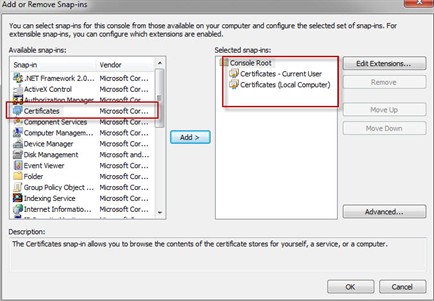
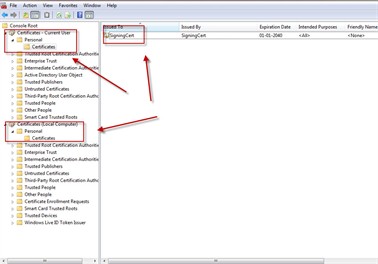
Next we will export the two certificates, same procedure for both certificates so i will only do it for the signing certificate open the currentuser personal certificate find the signingcert “right mouse click choose copy”, next go to the Localcomputer ->personal-Certificates and choose paste. Volia you should now be able to se the certificate. in your iis-manger.
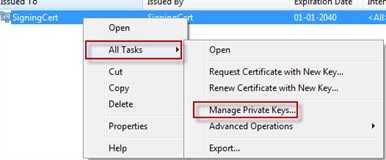
HERE starts one of the most important steps i’ve had and error one trying to signing mails with a cert where the .Net user doesn’t have acces to the private key.
Right click the certificate. choose All task Manage Private Keys and give you .Net user full access. Or everyone for TEST ONLY.
The more correct way to do this step is on your current user right click your cert choose alltaks export and choose to export private key. This should work.
If this step is missing you will get the following error KEYSET DOES NOT EXIST OR CANNOT FIND PRIVATE KEY
Custom Subitems sorting
Subitems sorting in sitecore only works for some of predefined fields. But it is an easy task to sort items for none standardfields. Subitems sorting is found in Sorting dialog here

First you need to create your own subitem sorting. This can be found in the master database under system/setting/subitems sorting
Easiest thing to do is just to duplicate one of the existing items and edit the duplicated item.
The name of the items will be shown in the sorting list so give i a meaning full name, i choose own created as an example. Bad name !

You need to specifiy in which assambly your compare class is presented in.
This is done in the Data-section.

So for this example we created a our own date field but not all items derives from a template that gives acces to this field, so as a fallback we look at the sitecore __created field “standard field under statistics.
The keypart is the DoCompare function in the following code.
namespace PT.SubItemsSorter
{
public class CreatedComparer : Comparer
{<br>
/// <summary>
/// Initializes a new instance of the <see cref="CreatedComparer"/> class.
/// </summary><br>
/// <remark>Created 13-11-2009 11:55 by ts</remark>
public CreatedComparer(

}

// Methods
protected override int DoCompare(Item item1, Item item2)
{
return GetCreatedDate(item2).CompareTo(GetCreatedDate(item1));
}

/// <summary>
/// Gets the created date.
/// </summary>
/// <param name="item">The item.</param>
/// <returns></returns>
/// <remark>Created 13-11-2009 11:55 by ts</remark>
private DateTime GetCreatedDate(Item item)
{
if (String.IsNullOrEmpty(item[DatasourceCreatedField])
return  GetDate(item,SitecoreCreatedDateField);
return GetDate(item, DatasourceCreatedField);
}

/// <summary>
/// Gets the date.
/// </summary>
/// <param name="item">The item.</param>
/// <param name="field">The field.</param>
/// <returns></returns>
/// <remark>Created 13-11-2009 11:55 by ts</remark>
private DateTime GetDate(Item item,string field)
{
DateField dateField = ((DateField)item.Fields[field]);
return dateField.DateTime;
}

private const string DatasourceCreatedField = "DataSource_CreatedDate";
private const string SitecoreCreatedDateField = "__Created";
}
}
Now you should be able to se it in the subitems sorting list. The code gives you the newest first.

Shortcuts in sitecore revisited
Here is another way to add new shortcuts to the sitecore shell. This method doesn’t use the global keys.xml file but set shortcuts on item level. So if we use the same example as my last entry with shortcuts “we want to bind a shortcut to preview”.
Go into Core database, Find the item “I’ve sorted my items so publish is first”

Now dind the datatab a field KeyCode put in your favortie keycode for thuis example we will bind F10 (keycode 121).
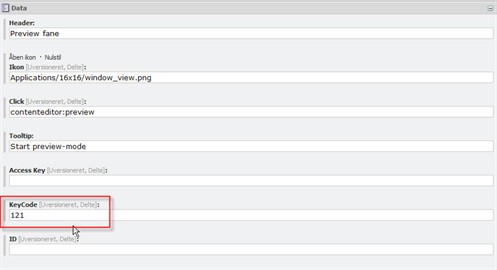
Now you should be able to start the preview by hitting F10.


 iStern Blog